
Shared Access applies to faculty, postdocs, and administrative staff users on ForagerOne. It allows them to grant colleagues, students, lab managers, or others access to their ForagerOne account to help manage their profiles, projects, student requests, and messages. As the account owner, they will have control of what others can access. By assigning View-only or Manage permissions to different capabilities, they can control in what ways others can act on their behalf.
How Shared Access Works
1. A user invites someone to access their account
Users go to My Profile > Settings > Shared Access. They can search for the person they would like to invite by name from the ForagerOne user database, then choose their permission level for each area: Profile, Projects, Request & Messages, and Shared Access settings.
* No Access: No access to that area.
* View: Can view information but cannot make changes.
* Manage: Can view and take action on their behalf.
Once they have set the permissions, the user can send an email invitation or share an invitation link with the user.
If an invitation is sent to a user by accident, the account owner can revoke access under Authorized Users for Access by selecting Cancel Invitation.
2. The invited user accepts the invitation and accesses a shared account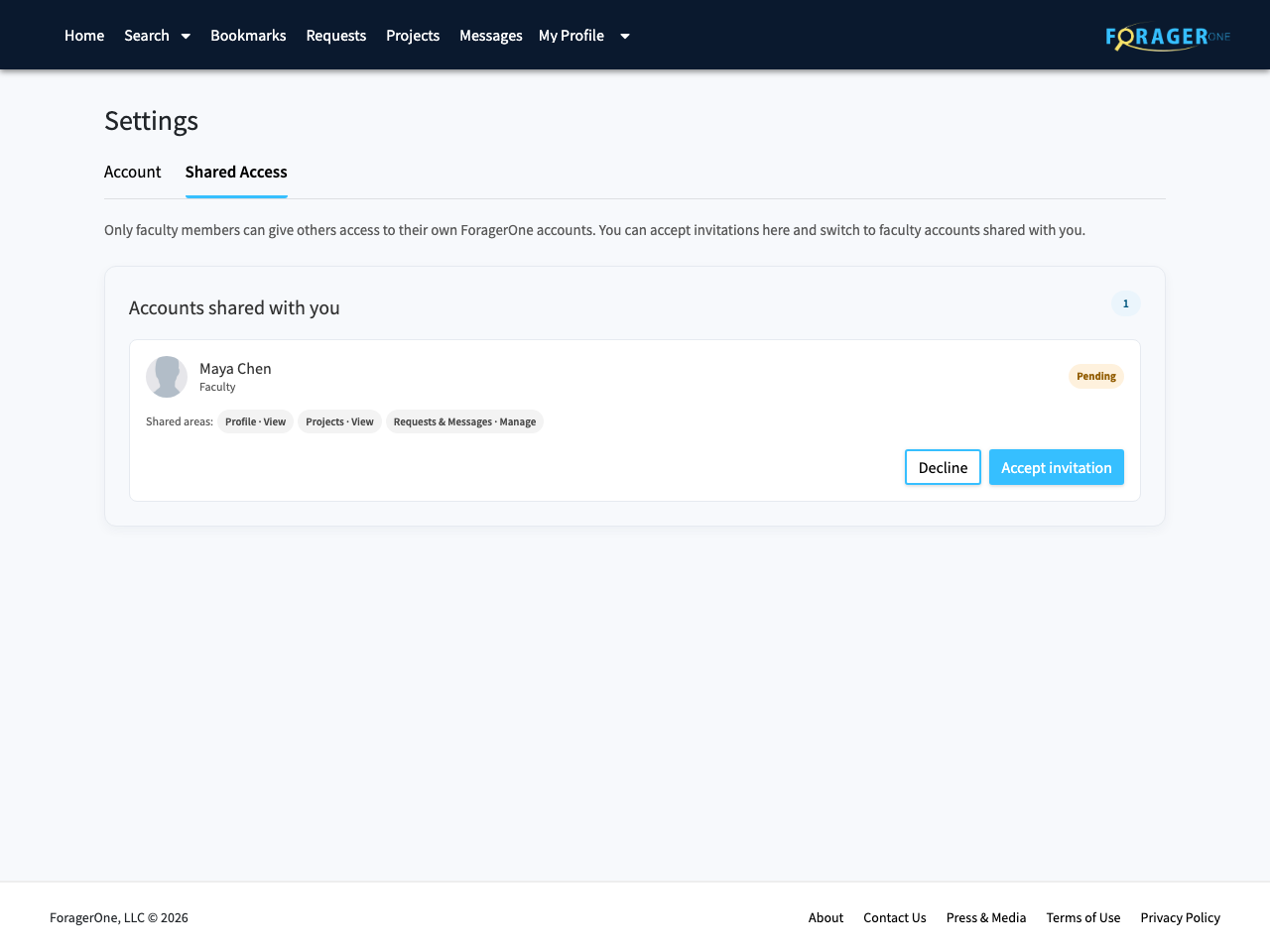
The invited user can accept the invitation from their own ForagerOne account under Shared Access. Once accepted, they can access the shared account by going to My Profile > Switch Accounts.
3. The invited user can switch between accounts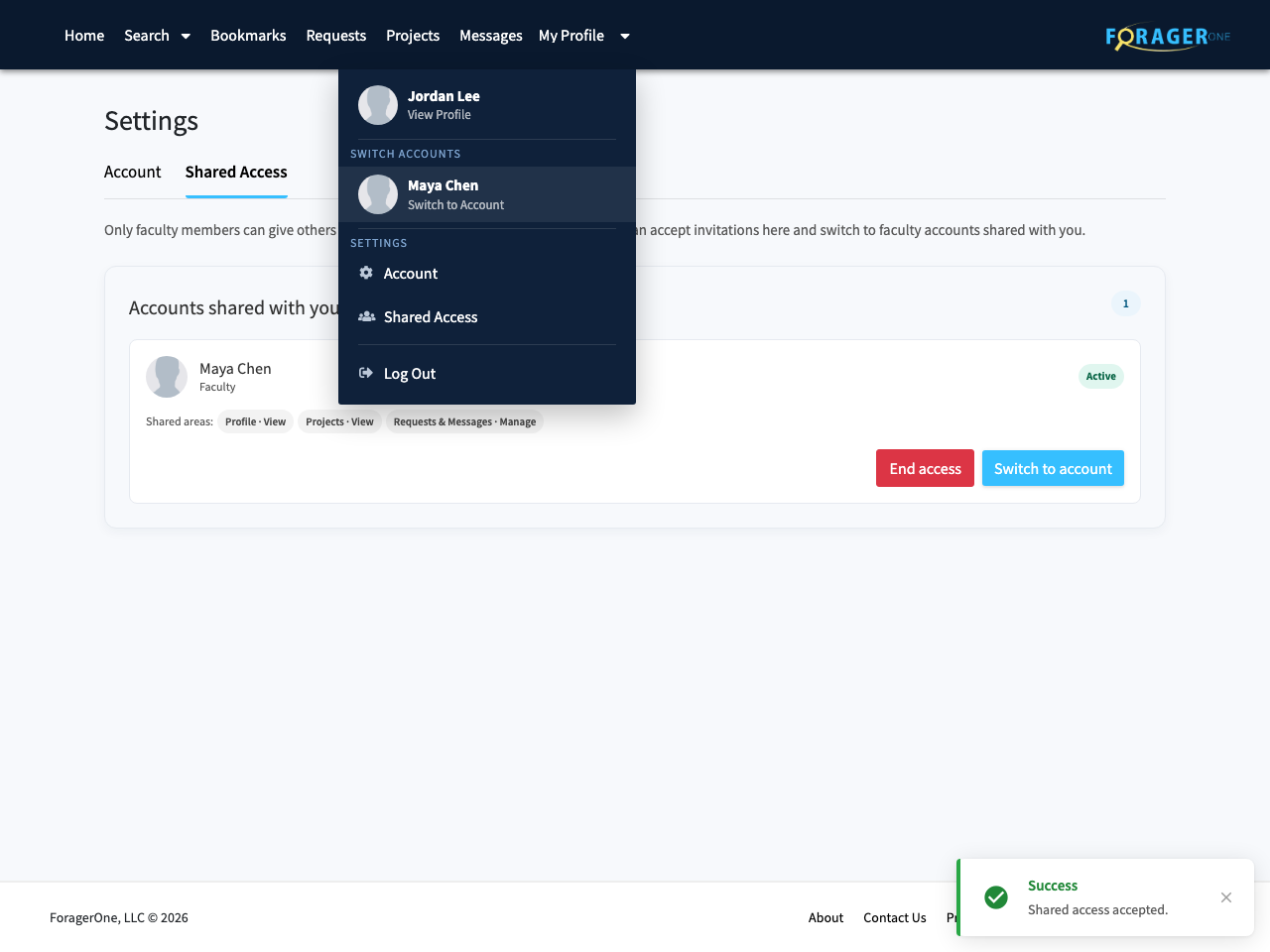
When viewing someone else’s account, a banner will appear to show the invited user whose account they are accessing.
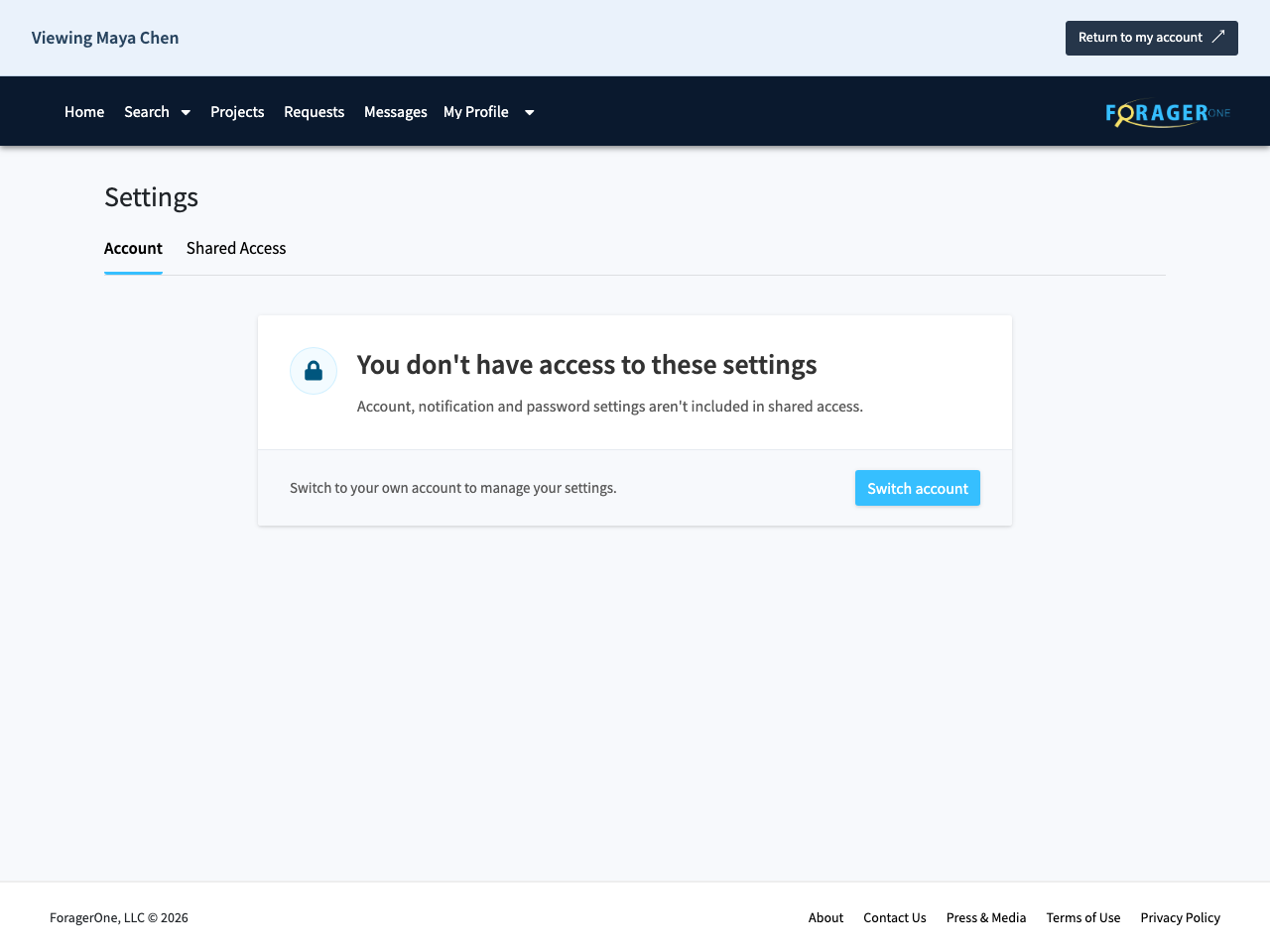
They can select Return to my account at any time to switch back to their own account. For the user’s privacy and security, their email address, password, and notification preferences will not be shared.
4. Account owner management and review of activity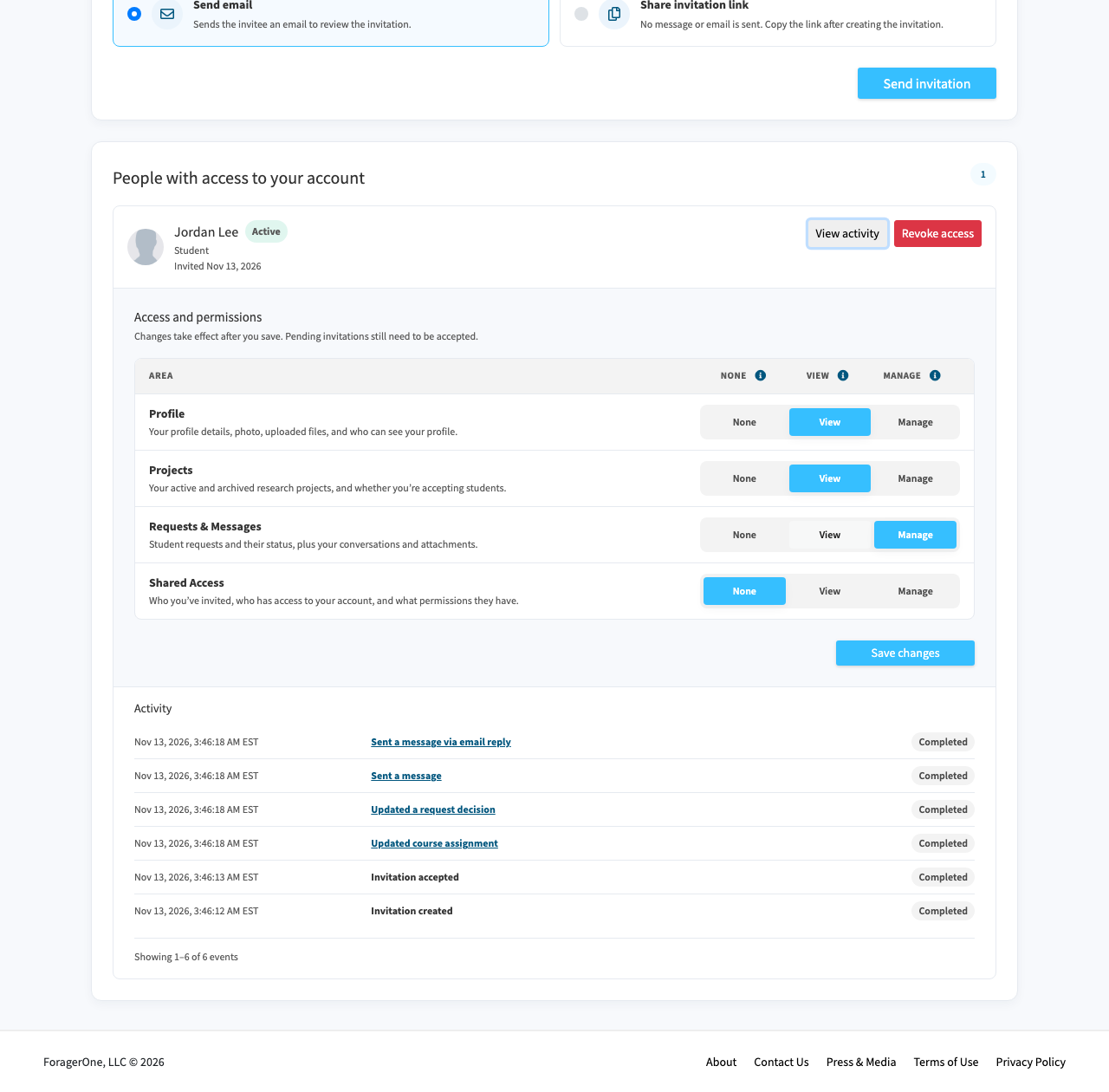
The primary account owner can manage shared access at any time under Authorized Users for Access.
From here, a user can:
* Review activity on their account by selecting View Activity.
* See actions taken on their behalf, including request decisions and messages sent.
* Identify who sent messages on their behalf.
* Update permissions or revoke someone’s access at any time.
* Select linked entries in the activity page to go directly to the related request or conversation.
5. Invited users get email notifications related to the accounts they have access to.
The account owner and any invited users with current Requests & Messages access receive message copies.
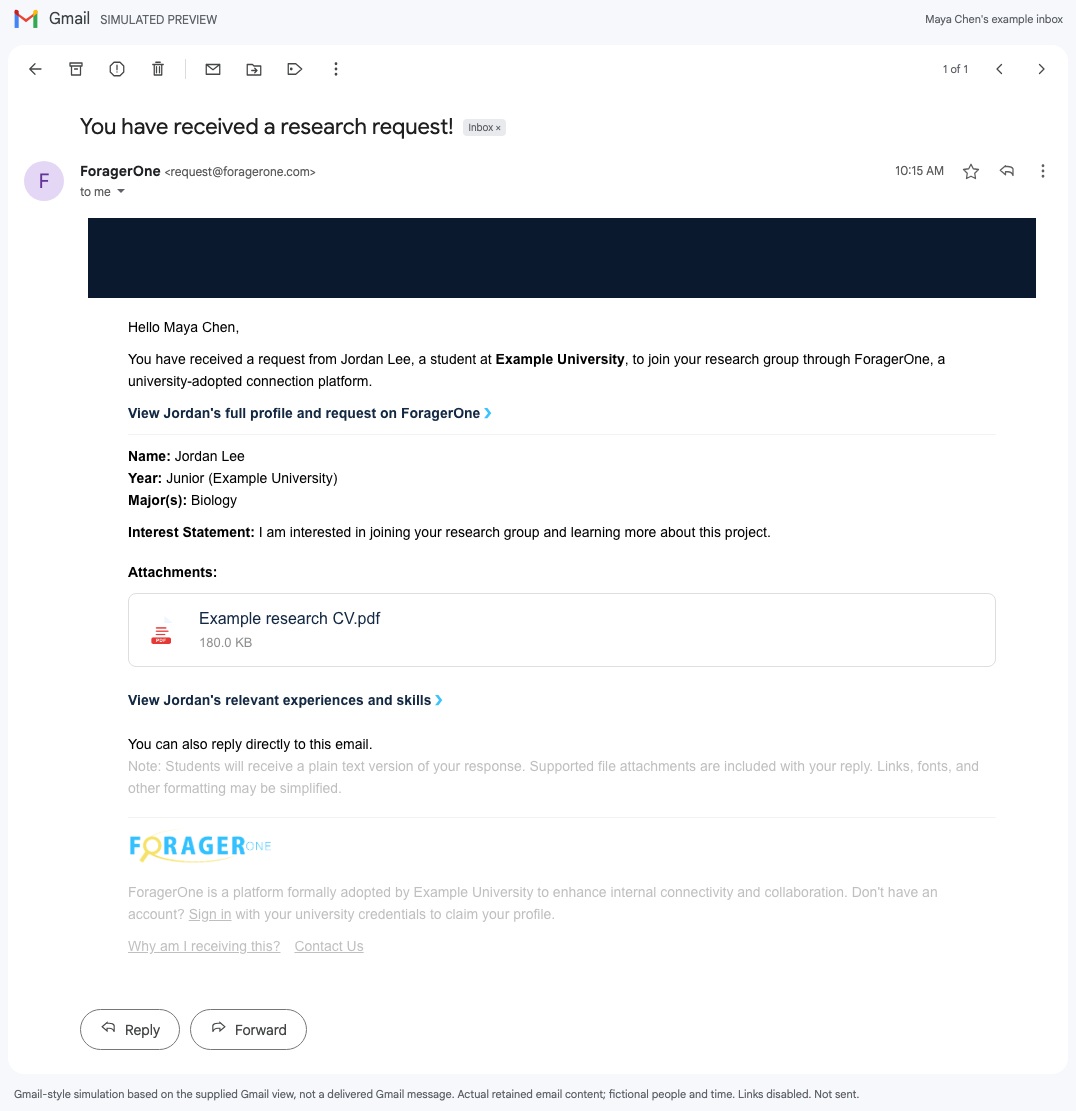
Authorized users with Manage permissions can reply by email.
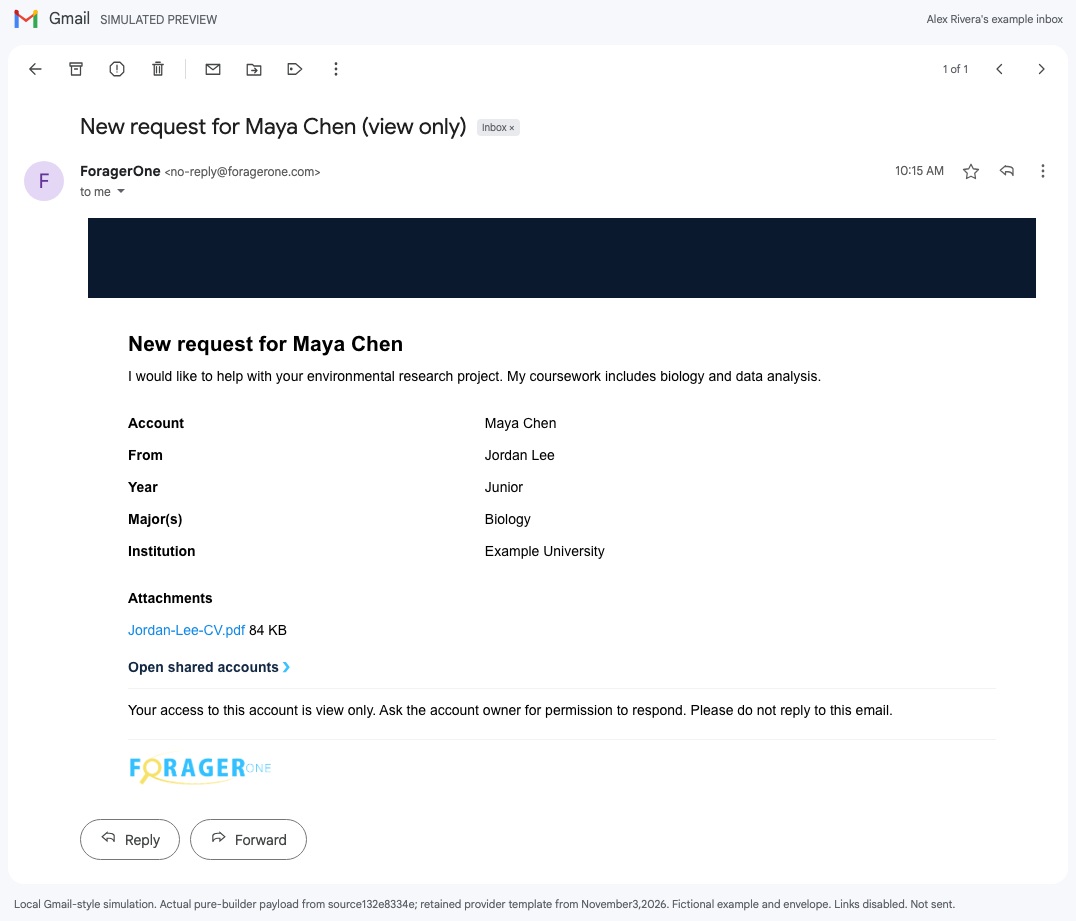
Authorized users with View permissions receive a read-only copy that explains the restriction and asks them to contact the account owner for permission to respond.